

Technician
Technician in the field: the job on a phone from arrival to signature
The technician opens the job on a phone or tablet, goes through the step-by-step wizard and has the customer sign on the screen. The office retypes nothing.
Coming soon install to the phone home screen
Job list
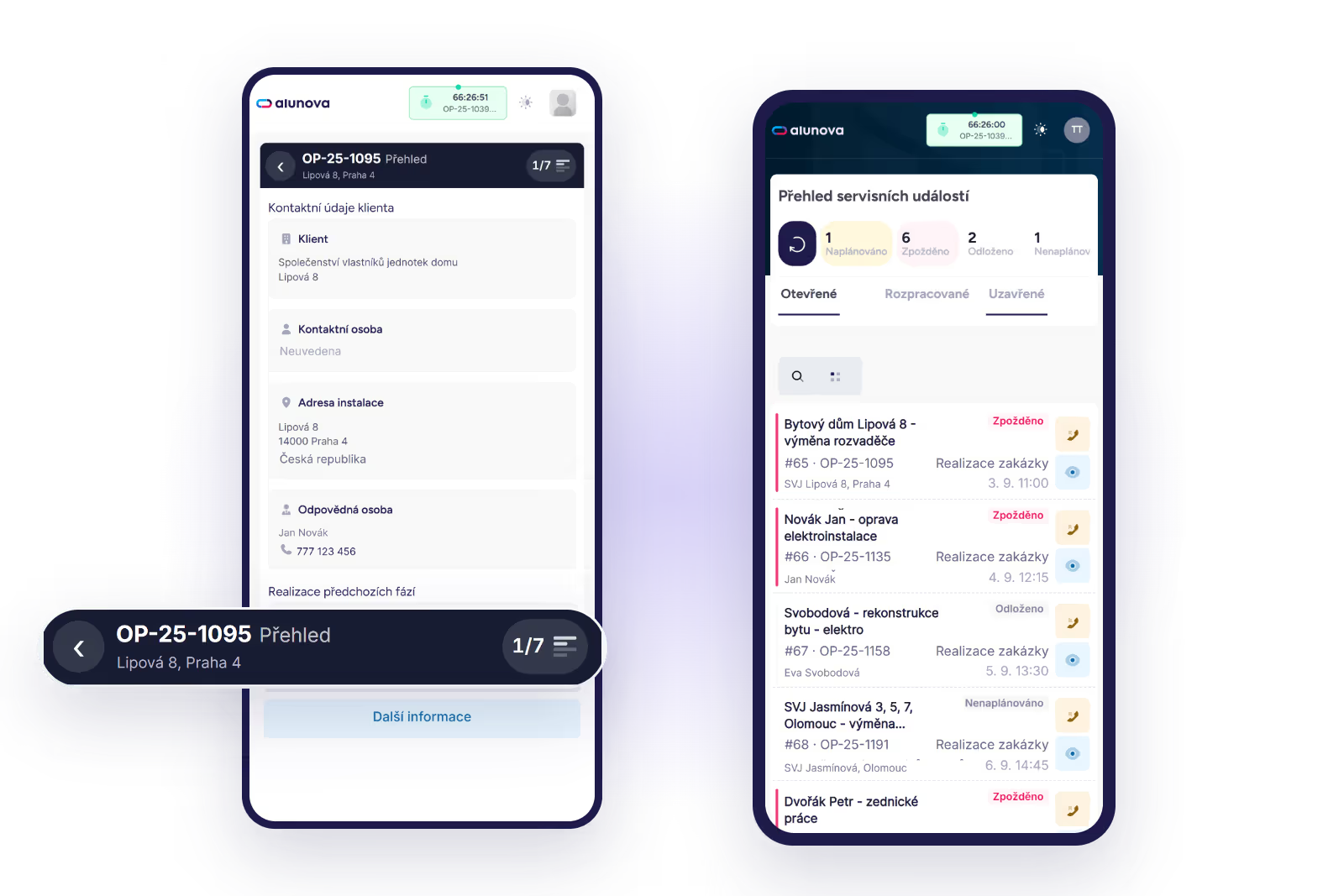
The technician sees their jobs split into open, in progress and closed. Each shows the client, address, date, stage and status. Jobs that technicians schedule themselves go into the calendar straight from the field.
Step-by-step wizard
The wizard guides the technician through steps that we configure according to your process and stage: Overview, Equipment identification, Materials, Quote items, Custom fields, Photos, Service report, Summary. Mandatory steps cannot be skipped, optional ones can. A checklist in the step makes sure the technician has not forgotten a check that you require.
Map, phone, history
The address of the job site opens in a map with navigation. Client contacts are one tap away, including the phone number. The history of previous service visits to the same client or equipment is shown on the job, so the technician knows what was dealt with last time.
Creating a job from the field
When the technician comes across further work on site, they create a new job straight from the phone. They pick the company from Raynet or find it in the ARES business register by company ID. Raynet receives the new client and the deal, the dispatcher receives the new job in the planner.
Before and after photos
For each stage we configure mandatory sets of photos, for example the equipment label, the condition before the intervention and the condition after it. The job cannot be closed without the mandatory photos. The photos are stored with the job and as an attachment on the deal in Raynet.
Materials and extra work
The technician picks the materials used from the Raynet price list with autocomplete; the price list synchronises automatically. Extra work and small materials are added separately. The line items are written into the deal, ready for invoicing.
Signature and service report
The customer signs with a finger on the screen; the technician can add a photo of the signing person. Alunova generates a PDF service report from your template and e-mails it to the customer. If the work is not finished, the technician closes the stage as partial completion and the job continues with another visit.
Timers
Work, travel and breaks each have their own timer. The times add up into attendance and into the job’s time report; the basis for payroll and invoicing is not retyped.
Light and dark theme
The application runs in the phone or tablet browser, in a light and a dark theme. Installation to the phone home screen is in preparation; offline work is not part of the product yet.
We will show you Alunova on your own jobs
30 minutes online. Bring two or three real cases — we will walk them from scheduling to the report in Raynet.